
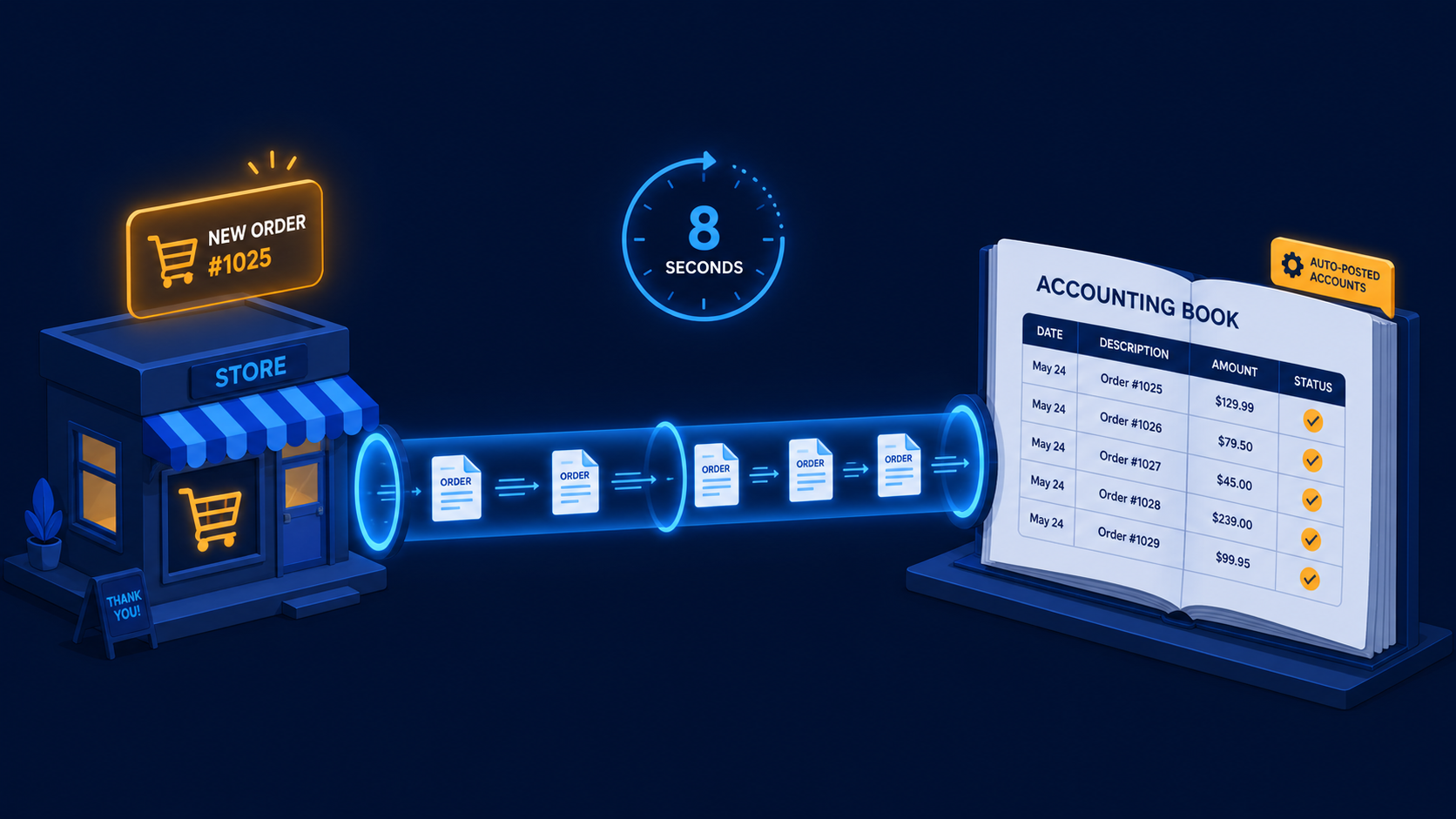
Quick scan before the full breakdown.
Goal
Eliminate weekly CSV exports and manual Moneybird invoice creation for a Dutch WooCommerce webshop.
Stack
n8n, WooCommerce Webhooks, Moneybird API, Google Sheets, Slack
Result
100% of orders synced to Moneybird automatically with zero VAT errors across 10 weeks.
Time saved
Removed about 2 hours per week of bookkeeper data entry.
An n8n workflow that picks up every new WooCommerce order the moment it’s paid, creates the contact and invoice in Moneybird automatically, marks it as sent, and handles refunds and partial payments without a human touching the accounting software.
A Dutch webshop selling physical products — around 120 orders per month — was running WooCommerce on a self-hosted WordPress installation. Their bookkeeper used Moneybird for all accounting. The sync between the two didn’t exist.
Every Monday morning the owner exported a CSV from WooCommerce and handed it to the bookkeeper, who manually created invoices in Moneybird, matched them to the correct contacts, applied the right VAT rates (21% for most products, 9% for a few categories), and marked paid ones as received. The process took the bookkeeper about two hours per week.
Refunds were worse — WooCommerce generated a credit note that had to be manually matched and processed separately.
The question was: why is anyone doing this by hand?
Two n8n workflows running on a self-hosted VPS.
Workflow 1 — Order to Invoice: Triggered by a WooCommerce webhook on order.payment_complete. The webhook fires the moment a payment is confirmed — iDEAL, credit card, or manual bank transfer.
Steps inside the workflow:
/contacts with the customer email. If yes, use the existing contact ID. If no, create a new contact with name, email, address, and (if provided) KVK numberdetail line per WooCommerce order line, with the correct tax_rate_id mapped from the WooCommerce VAT rate/sales_invoices to create the invoice in draft state/sales_invoices/{id}/send_invoice to mark it as sent (Moneybird requires this to register it as an outstanding receivable)/sales_invoices/{id}/register_payment with the payment date and amount from the WooCommerce order — marks it as paid immediately for orders where payment was confirmed at checkoutWorkflow 2 — Refund to Credit Note: Triggered by a WooCommerce webhook on order.refunded. Looks up the Moneybird invoice ID from the lookup table, creates a credit note via /credit_notes, and links it to the original invoice.
WooCommerce stores VAT as a percentage. Moneybird requires a tax_rate_id — a numeric ID specific to your Moneybird administration. These don’t map automatically.
I built a static mapping object in the workflow:
{
  "21.00": "{{MONEYBIRD_TAX_ID_HIGH}}",
  "9.00": "{{MONEYBIRD_TAX_ID_LOW}}",
  "0.00": "{{MONEYBIRD_TAX_ID_ZERO}}"
}
The actual IDs come from a one-time GET to /tax_rates during setup and are stored as n8n credentials. Any VAT rate that doesn’t match sends a Slack alert so it doesn’t silently fall through.
Running for 10 weeks with an average of 127 orders and 11 refunds per month:
The bookkeeper now opens Moneybird to find everything already processed. Their work on this client shifted from data entry to actual bookkeeping — reviewing the period, checking outstanding balances, preparing BTW returns.
The Google Sheet lookup table works but is fragile — if the sheet is unavailable, Workflow 2 fails silently. A better approach is storing the WooCommerce-to-Moneybird ID mapping directly in the WooCommerce order as custom metadata via the WooCommerce REST API. Fewer dependencies, cleaner audit trail.
Want to connect your WooCommerce store to Moneybird or another Dutch accounting system? Get in touch.
Three nearby case studies worth reading next.
May 1, 2026
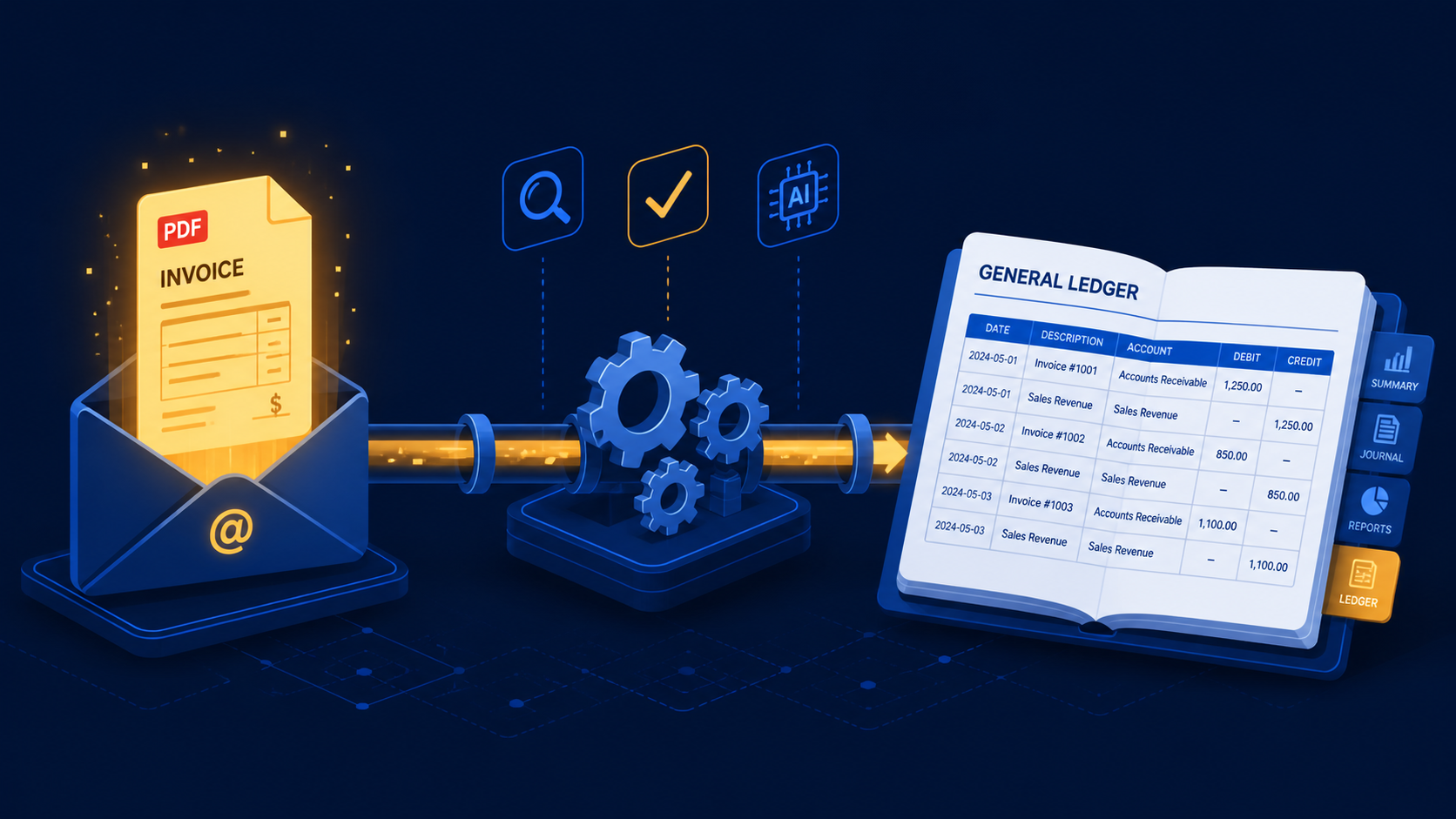
A three-stage n8n workflow that extracts supplier invoices from Gmail with Claude and books purchase mutations directly into e-Boekhouden.
May 1, 2026
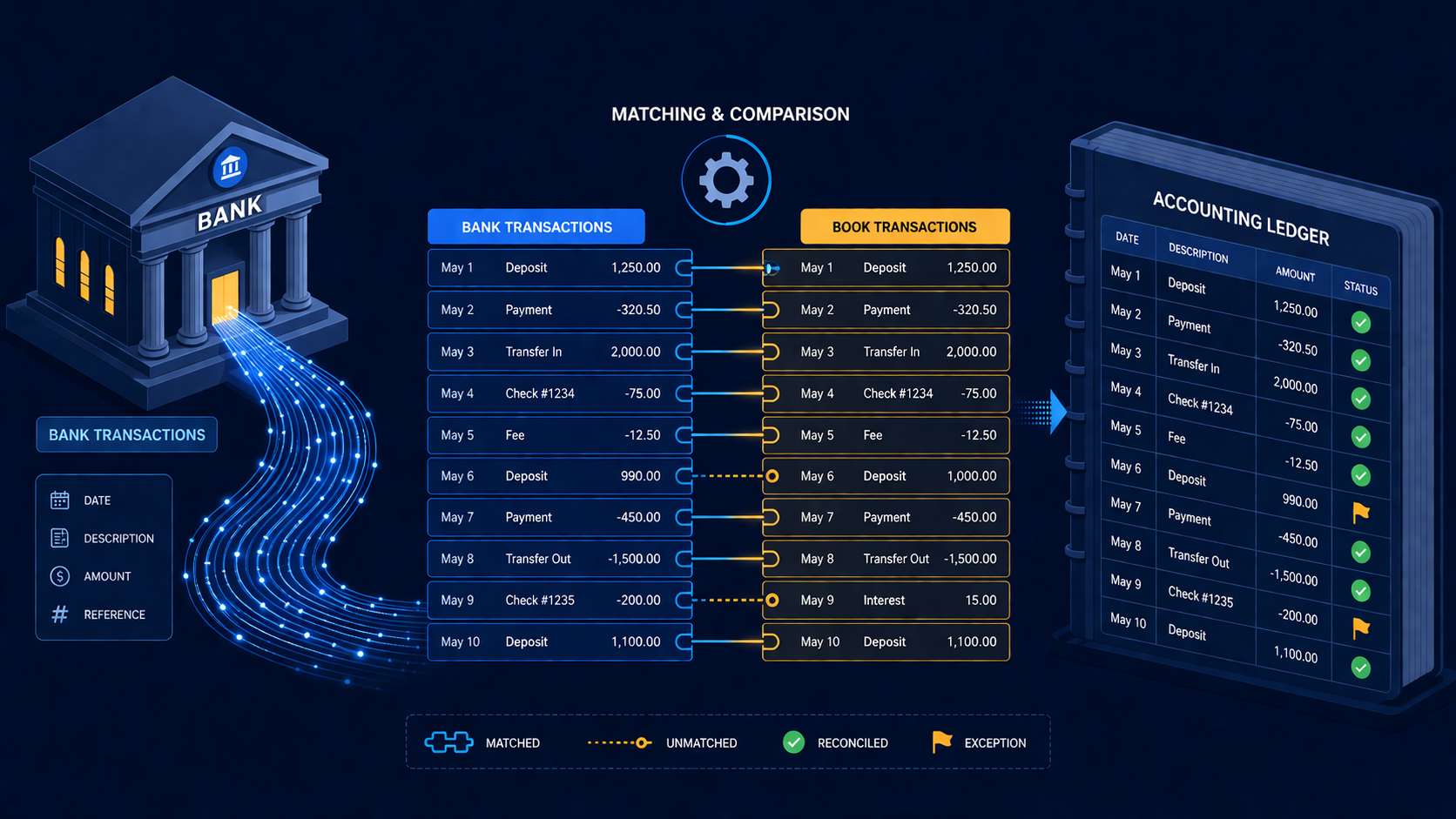
An n8n reconciliation workflow that matches ING bank transactions against Exact Online invoices and books confirmed payments automatically.
Apr 4, 2026
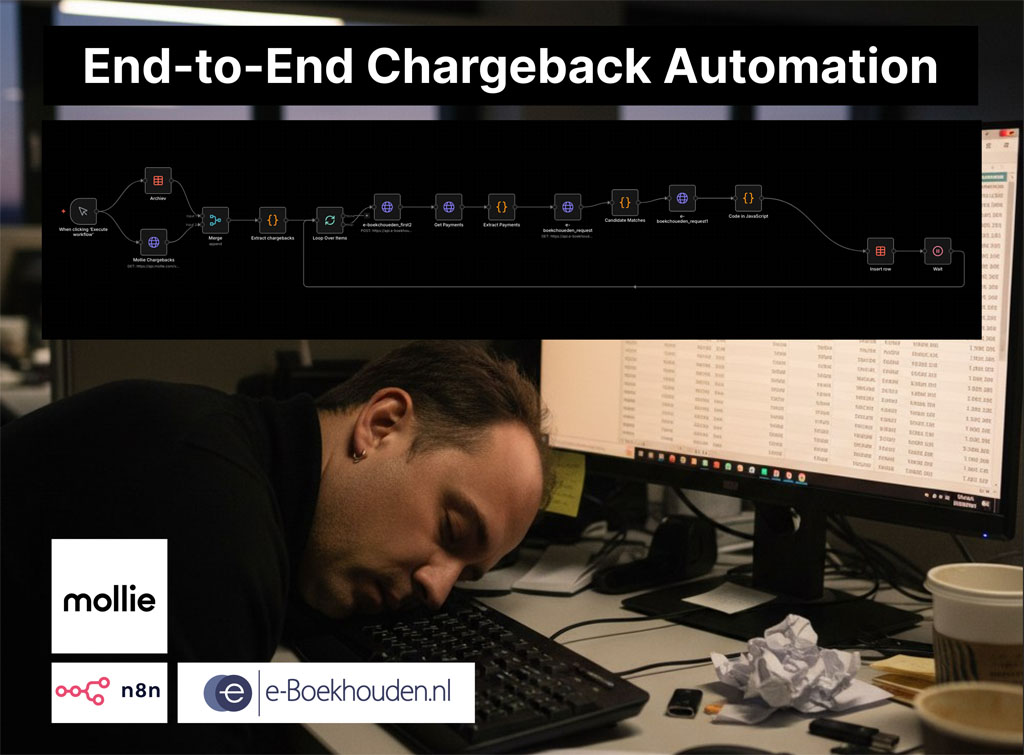
A two-workflow n8n system that matches Mollie chargebacks to the correct e-Boekhouden mutations and creates the accounting entries automatically.
If you have a manual workflow between tools, I can help map the logic, design the system, and automate it in a way your team can actually use.
